A web page has a lot of moving parts. SEO tags, structured data, scripts, styles, tracking pixels, accessibility markup, fonts, colours, and the heavy files that decide how fast it loads. Checking all of it usually means hopping between half a dozen tools and a couple of DevTools panels, copying findings into a doc as you go.
We got tired of that, so we built one tool that does the common checks in a single place.
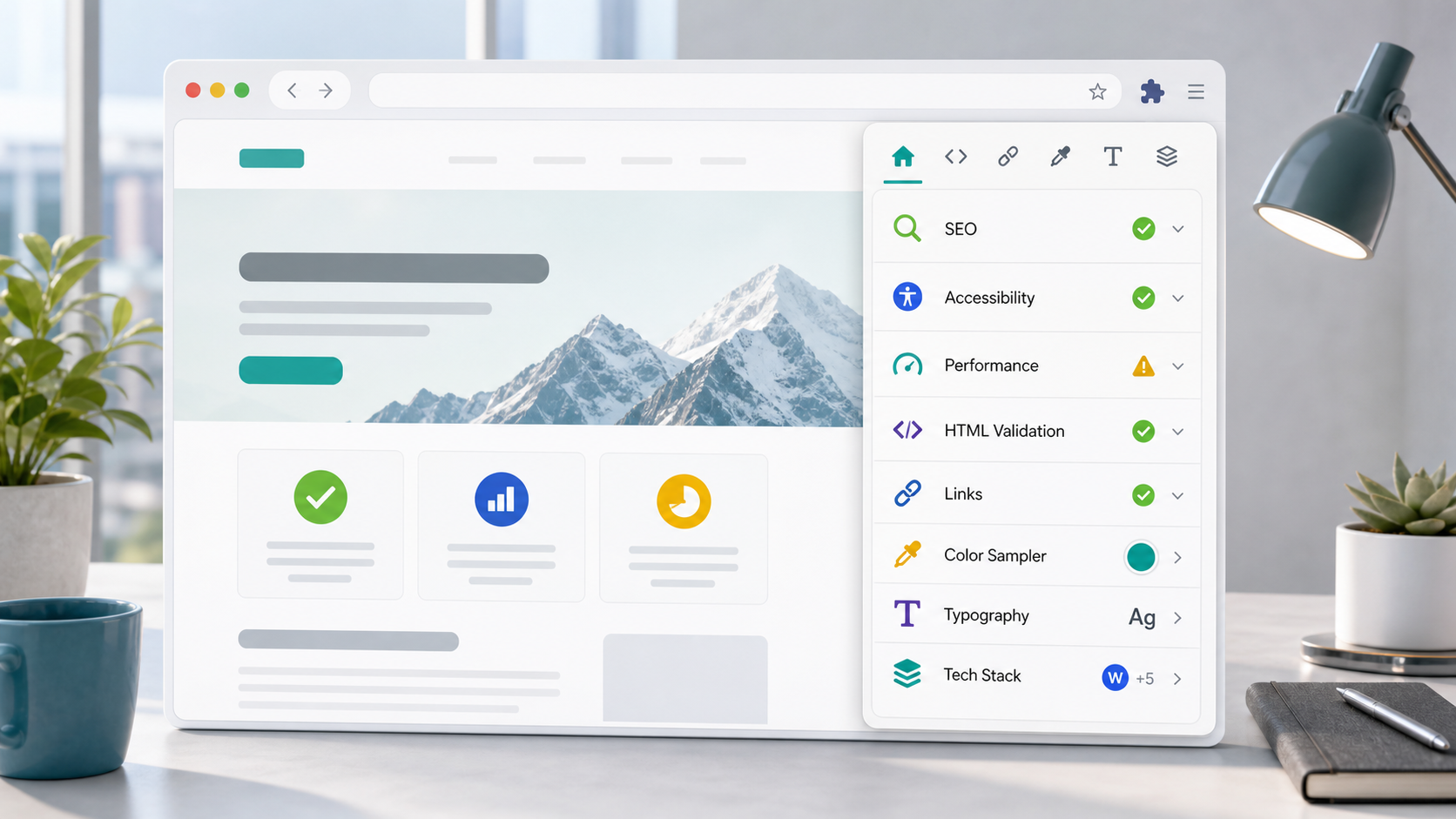
A1 Multitool is a Chrome extension that reads the page you’re already looking at. Open the popup, pick a tool from the left, read the results. Nothing about the page gets sent anywhere — it all runs in your browser, only when you ask.
It’s free, and it’s built for the people who look after websites: developers, SEOs, marketers, designers, QA, agencies, and owners who like to keep an eye on their own site.
Findings you can act on, not just raw numbers
Most inspectors hand you a pile of data and leave the thinking to you. A1 Multitool starts each report with a Findings panel: a short, plain-language list of what matters and what to do about it.
Every finding is ranked High, Med or Low, with a one-line explanation and a suggested next step. The top of the panel sums it up — “3 opportunities: 1 high, 2 med” — and under the findings you still get all the raw evidence if you want to dig in.
When you need to pass it on, hit Copy report for a clean plain-text version, ready for a client note, a QA ticket, or a Slack message:
A1 Multitool SEO Findings

- [High] Page is blocked from indexing: The robots meta tag
  includes noindex. Next: Confirm this is intentional before
  publishing.
- [Med] Canonical URL missing: Duplicate or syndicated pages are
  harder to consolidate without a canonical hint. Next: Add a
  canonical link if this page has duplicate paths or tracking
  variants.
That’s the difference we cared about most. A score tells you something is wrong. A finding tells you what to do next.
The nine tools
Down the left rail are nine tools, each with its findings up top and the details below.
Type. Start the on-page inspector, hover to highlight, then click any text to capture its font family, size, weight, line height, letter spacing and colour. Copy the sampled CSS straight out — handy for matching a heading or spotting a design inconsistency. It also lists every font the page loads.
Color. Eyedrop any pixel on screen for HEX, RGB and HSL, keep a list of recent picks, pull the whole page palette at once, and check two colours against WCAG contrast levels.
SEO. Indexability, page title and meta description with length guidance, canonical and robots tags, Open Graph and Twitter Card data with a social share preview, JSON-LD structured data types, the heading outline, and page asset counts.
Links. Totals for internal, external and nofollow links, plus the outside domains the page points to. Findings flag things like heavy external linking, thin internal linking, or external links that may need a sponsored or nofollow rel.
HTML. The small markup problems that cause big headaches: duplicate IDs, empty href and src attributes, images with no alt, a missing lang, a missing title.
Accessibility. A quick local pass for images with no alt text, inputs with no label, buttons with no accessible name, skipped heading levels, and whether the page uses landmark regions. It’s not a full audit — but it catches the obvious things before launch or handoff.
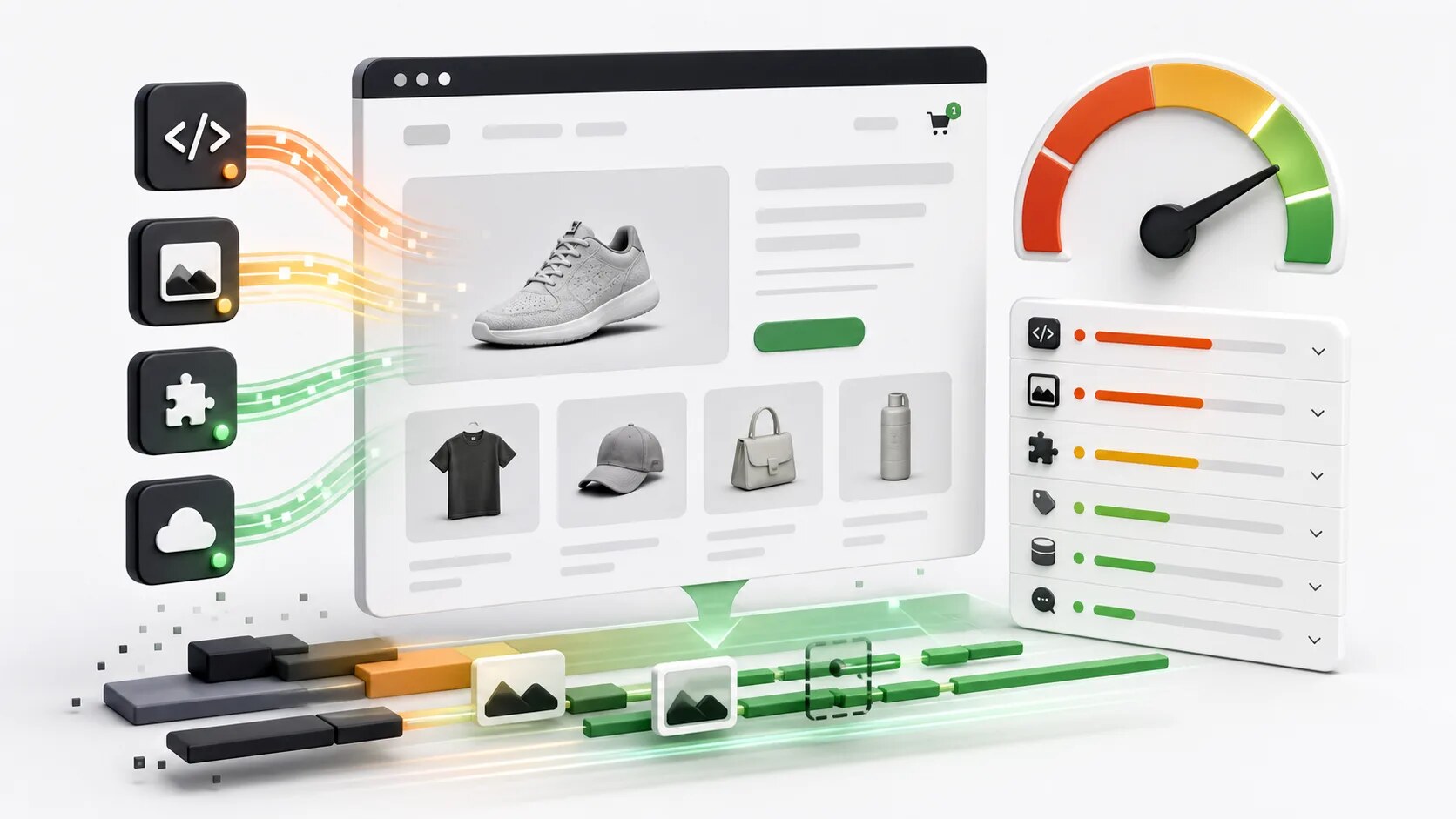
Speed. First byte, DOM ready and load times, the request count, total transfer size, the third-party host count, and the five heaviest files — drawn from the browser’s own timing data.
Tech Stack. Spots what’s running on the page: frameworks (React, Next, Vue, Angular, Svelte), platforms (WordPress, Shopify, Wix, Squarespace, Webflow, Drupal), analytics (Google Analytics, Tag Manager, Adobe, Hotjar, Clarity), ad and affiliate tech (Google Publisher Tag, AdSense, Prebid, Skimlinks), consent tools (OneTrust, Cookiebot, Didomi), CDNs (Cloudflare, Akamai, Fastly, CloudFront), and embeds (YouTube, Vimeo, X, Facebook, TikTok) — along with the script and link hosts it sees.
Overlay. Outline every element to reveal the layout boxes, or hover to measure anything in pixels.
Local-first, by design
These checks read things that belong to you or your client: draft pages, staging sites, internal tools. None of it should leave the browser, so none of it does. A1 Multitool sends no page content, no results, no browsing history and no settings to any server.
It asks for the smallest set of permissions it can:
- activeTab — to read the current page, and only after you click.
- scripting — to run its checks locally in that tab.
- storage — to remember small preferences like your last-used tool, recent colours, and your latest type sample.
No broad host permissions, no account, no setup. If you work on sites that aren’t public yet, that matters — you can run the checks on a staging URL without wondering where the data went.
Keep it open while you work
Toolbar popups close the moment you click away, which is maddening when you’re trying to scroll and inspect at the same time. So A1 Multitool has a separate-window mode. Open the popup, press the detach button in the header, and the inspector pops out into its own window that keeps scanning the original tab while you move around the page.
A few ways to use it
A quick SEO check. Open a page, choose SEO, read the findings. Check the title, description, canonical, robots, social tags, schema and headings, then copy the report for the developer or client.
An accessibility spot check. Open a page or form, choose Accessibility, and use the findings as a short remediation list: missing alt text, unlabeled inputs, unnamed buttons, heading skips, missing landmarks.
A tech and performance review. Open Tech Stack to see the analytics, ad tech, consent tools, CDNs and embeds in play, then switch to Speed to check request count, third-party hosts, transfer size and the heaviest files.
A design implementation check. Open Type, start inspecting, click the text you’re reviewing, and copy the CSS. Switch to Color to check the palette and contrast against WCAG levels.
Get it
A1 Multitool is free. Add it to your browser, pin it to the toolbar, and it’s there the next time you need a quick look under the hood. No setup required.
A1 Multitool store links are coming soon. (Built for Chrome, Edge and Firefox.)
It won’t replace a deep audit or a specialist suite, and it isn’t meant to. What it does is give you a fast, honest first pass across the things that most often matter — SEO, accessibility, performance, HTML, links, design and page technology — without anything leaving your machine.
Made with care in Australia by the team at A1 Local.