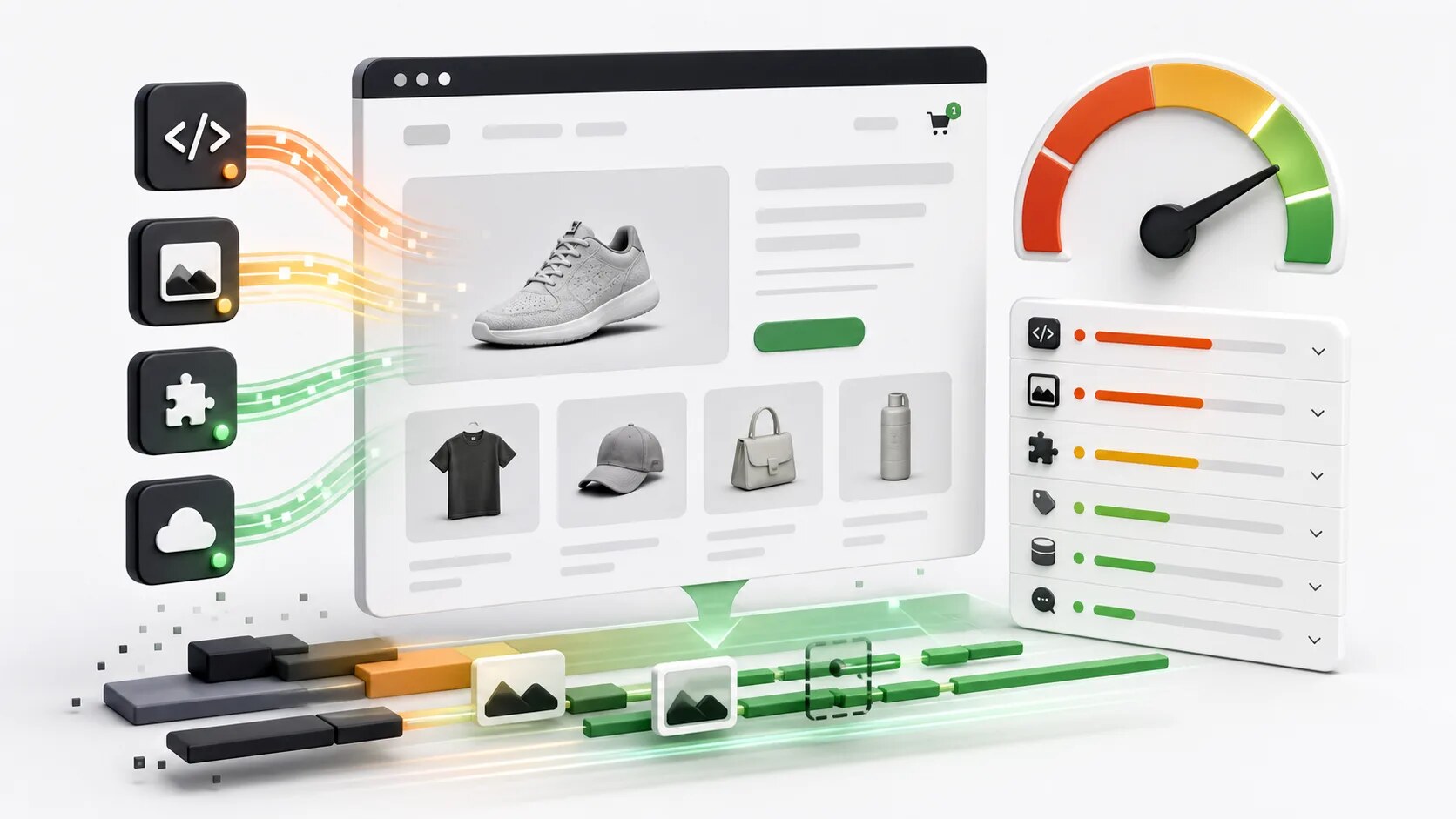
Most articles on Shopify speed are vague. “Optimize your images! Use a fast theme! Limit your apps!” — generic advice that doesn’t tell you what to actually do or which problems are worth fixing first.
This article is different. We’ll walk through the actual reasons Shopify stores load slowly, in order of impact, with specific actions you can take for each one. We’ll skip the things that sound smart but don’t actually move the needle.
If you want to understand image-specific optimization in depth, our Image SEO for Shopify guide covers that in detail. This article is about the broader picture — why the page is slow, not just why an image is.
Why this matters
Slow pages cost you in three ways:
Lower conversion rates. Every additional second of load time reduces conversion. The relationship is well-documented across the industry — single-digit percentage drops for every extra second.
Lower search rankings. Google uses Core Web Vitals as a ranking factor. Slow pages rank worse than fast ones, all else being equal.
Worse customer experience. Customers form opinions about your brand in the first few seconds. A laggy site feels cheap regardless of how good your products are.
The good news: most slow Shopify stores have specific, fixable causes. You don’t need to be a developer to identify and address most of them.
Diagnose before you fix
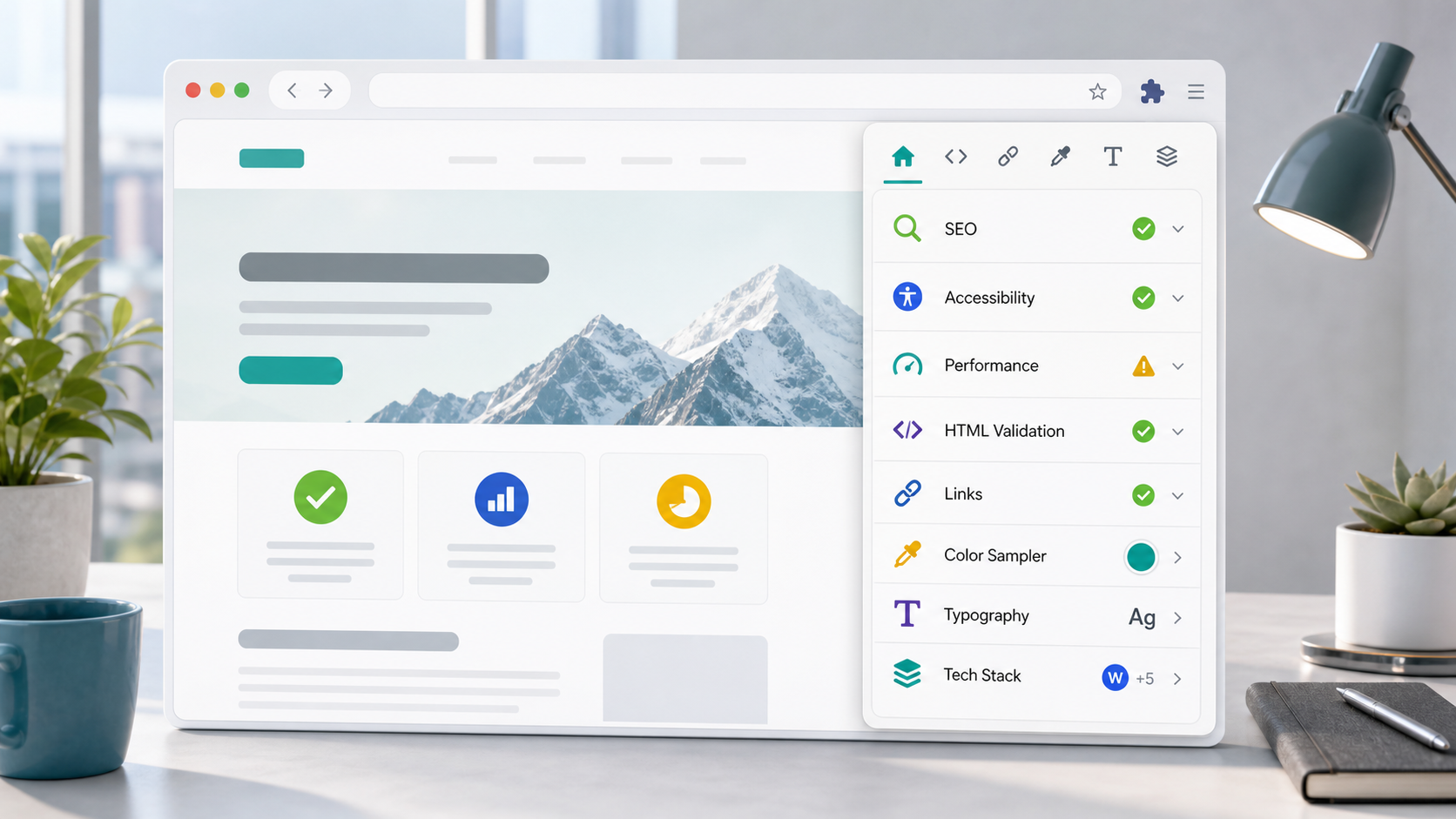
Before changing anything, measure where you actually are. Two free tools handle 95% of what you need:
PageSpeed Insights — Google’s official tool. Paste your URL, get a detailed report with specific recommendations. Test at least three pages: your homepage, your most-trafficked product page, and your most-trafficked collection page.
GTmetrix — Similar to PageSpeed Insights with more detailed breakdowns of what’s loading slowly. Free tier is enough for most diagnostic work.
Both tools score from 0-100. For Shopify stores, here’s what to expect:
- 90+: Excellent. Most well-built Shopify stores score in this range.
- 70-89: Decent. Some optimization opportunities, no urgent issues.
- 50-69: Needs work. Specific problems are likely findable.
- Below 50: Serious problems. Something is significantly wrong.
If you score 90+ on both your homepage and a key product page, you’re in good shape — don’t spend time optimizing further until something changes. If you’re below 70, the rest of this article will help.
The top causes of slow Shopify stores
In order of how often they’re the actual problem:
Cause 1: Too many apps loading on every page
This is the single most common cause of slow Shopify stores, by a wide margin.
Every Shopify app you install can add JavaScript, CSS, and external resources to your pages. Many apps load on every page of your store, even pages where their functionality isn’t used. A photo gallery app might load 50KB of JavaScript on every product page even though only 3 of your 200 products have a gallery on them.
When you have 5 apps installed, this is usually fine. When you have 15, you’re shipping 500KB+ of unnecessary code to every customer on every page view. The browser has to download, parse, and execute all of it before your page is interactive.
How to diagnose:
- In Chrome, open your store
- Right-click → Inspect → Network tab
- Refresh the page
- Look at the bottom of the Network panel for “transferred” size and number of requests
- Filter by “JS” to see just JavaScript files
- Look for files from domains that aren’t yours or Shopify’s
If you see JavaScript files from appdeveloper1.com, appdeveloper2.com, etc., those are individual apps loading their code at runtime.
What to do:
Audit your installed apps quarterly. Go to your admin → Apps. For each one, ask: “Am I actively using this? Is the value worth the performance cost?” If the answer to either is no, uninstall it.
Check whether apps you do use are loading on pages they shouldn’t. Some apps offer settings to control where they activate. A gallery app should only load on pages with galleries, not on every page of your site.
Be skeptical of apps that say they “weigh nothing”. Use PageSpeed Insights to verify, not the app’s marketing claims.
Consolidate where possible. If you have three apps that each handle one piece of customer email functionality, can one app replace all three? Fewer apps means less overhead.
This single category — app bloat — is responsible for most of the difference between a Shopify store scoring 90 on PageSpeed and one scoring 50. Address this before anything else.
Cause 2: Unoptimized images
The second biggest cause, and one we’ve covered in depth in Image SEO for Shopify. The summary version:
Image dimensions too large. Uploading a 5000px-wide image and using CSS to display it at 500px wide doesn’t make the file smaller — the visitor’s browser still downloads the whole 5000px file.
Image file sizes too big. A properly-sized image at quality 100% can still be 2-3 MB. Compression brings it down to 200-500 KB without visible quality loss.
No lazy loading. Without lazy loading, every image on a long page loads at once, even images the visitor never scrolls to. Lazy loading defers them until they’re needed.
No width and height attributes. Without these, images cause layout shift as they load, which hurts both UX and Core Web Vitals.
What to do:
For new uploads: Resize images to roughly the dimensions they’ll display at (with 2x buffer for Retina displays) before uploading. Compress with TinyPNG or Squoosh. Modern Shopify themes handle lazy loading and dimensions automatically — make sure you’re on Online Store 2.0.
For existing images: Cleanup is tedious but high-impact. Start with your homepage and top product pages — fix images there first.
For gallery apps specifically: Some gallery apps handle responsive variants well, some don’t. If you have a gallery app and your image-heavy pages are slow, audit the app’s behavior in DevTools to see what sizes it’s actually serving.
Cause 3: Slow theme
Some Shopify themes are dramatically faster than others. The difference is usually invisible until you compare them on the same content.
Modern themes (Online Store 2.0): Generally fast, well-optimized, lazy-load by default. Dawn, Sense, Refresh, Studio, Crave are all good baselines.
Older themes (pre-2021 “Vintage” architecture): Often slower, may not lazy-load images by default, harder to optimize.
Heavily-customized themes: Custom development can make any theme fast or slow depending on the developer. If your theme was custom-built years ago and never reviewed for performance, it’s probably worth a fresh audit.
Bloated paid themes: Some popular paid themes prioritize “lots of features” over “fast loading.” A theme that ships with 30 demo sections, multiple slider libraries, and a custom JavaScript framework is going to be slower than a minimal theme regardless of what content you put in it.
What to do:
Test what your theme does. Look at the “Largest Contentful Paint” and “Total Blocking Time” metrics in PageSpeed Insights. If TBT is over 200ms, your theme is shipping too much JavaScript.
Consider switching to a faster theme. Migrating to Dawn (Shopify’s free flagship theme) often gives an immediate speed boost. The migration itself is non-trivial, but the long-term performance benefit is large.
Audit theme customizations. If a developer added significant custom code to your theme, ask them when it was last reviewed for performance. Old custom code is often the culprit for theme-related slowness.
Cause 4: Third-party scripts (tracking, chat, popups)
Beyond apps, many Shopify stores load third-party scripts directly: Google Analytics, Facebook Pixel, Hotjar, Klaviyo, customer chat widgets, popup tools, A/B testing tools.
Each of these adds weight. Most are loaded synchronously, meaning they block the rest of the page from rendering until they finish loading. A single misbehaving third-party script can add 2-3 seconds to your load time.
The biggest culprits we see:
- Customer chat widgets that load a megabyte of JavaScript to show a chat bubble
- Heatmap tools (Hotjar, Microsoft Clarity) that record session data
- Popup tools that load on every page even if the popup only shows on one page
- Multiple analytics tools running simultaneously
- Affiliate tracking scripts
What to do:
Inventory your third-party scripts. In Chrome DevTools, look at the Network tab and identify every external domain your page loads from.
Question each one. “Why is this here? What value does it provide? Could I get the same value with a lighter alternative?”
Defer or async-load where possible. Most tracking scripts support async or defer attributes that prevent them from blocking rendering. Modern Shopify themes handle this for analytics; check whether your chat widget and other tools do.
Consider whether you need everything. Many merchants accumulate tracking tools over time and never remove old ones. If you don’t actually look at Hotjar’s data, uninstall Hotjar.
Cause 5: Old apps and abandoned code
Even uninstalled apps can leave residue in your theme. Theme code that was added during app install isn’t always removed when the app is uninstalled.
How to check:
- Go to Online Store → Themes → Edit code
- Search across the theme for app names, even apps you’ve uninstalled
- Look for
<script>tags pointing to domains you don’t recognize - Look for commented-out code blocks that say something like “Added by [App Name]”
What to do:
Removing old app code requires touching theme files. If you’re not comfortable with that, hire a Shopify developer for an hour to clean it up. The performance benefit is usually small but real, and the cleanup also reduces security and stability risks.
Cause 6: Slow Shopify itself (rare but real)
Sometimes a slow store isn’t your fault. Shopify’s infrastructure can have issues, regional CDN problems, or temporary slowdowns.
How to check:
- Shopify Status shows current platform health
- Test your store from multiple locations (use a VPN or ask friends in other cities)
- Check whether other Shopify stores feel slow too
If Shopify’s infrastructure has problems, you’ll see it everywhere. Wait it out — there’s nothing you can do to fix Shopify’s infrastructure from your end.
Cause 7: Custom code added by previous developers
Stores that have had multiple developers over the years often accumulate custom code that nobody currently working on the store understands. Some of it is essential; some of it is decade-old hacks that nobody dares touch.
Symptoms:
- Pages have inexplicable extra HTTP requests
- JavaScript errors in browser console
- Performance metrics that don’t match what your theme should produce
What to do:
Hire a Shopify developer to do a code audit. A good developer can identify unnecessary or broken custom code in 2-3 hours and tell you what’s safe to remove. Cost: usually $200-500, often paid back many times over in performance improvement.
What to do, in priority order
If your store is slow, here’s the order to work through:
Week 1: Quick wins
- Run PageSpeed Insights on 3 key pages. Save the scores.
- Inventory your apps. Uninstall any you’re not actively using.
- Check for old app code residue in your theme.
Week 2: Image cleanup 4. Identify the 10 most-trafficked pages. Resize and compress images on those pages first. 5. Check that lazy loading is working on all of them.
Week 3: Third-party scripts 6. Audit third-party scripts. Remove anything you don’t use. 7. Move tracking scripts to async/defer if not already.
Week 4: Theme review 8. Score the same 3 pages again. Compare to week 1. 9. If still slow, evaluate whether the theme itself is the issue. If yes, plan a theme migration.
Month 2+: Maintenance 10. Re-audit apps and scripts every 90 days. 11. Run PageSpeed Insights on key pages monthly. 12. Address any new performance regressions before they accumulate.
Common myths
A few performance “tips” you’ll see online that are mostly wrong:
“Use fewer fonts.” Modern web fonts are mostly subset-able and serve quickly. Unless you’re loading 5+ custom fonts, this isn’t your problem.
“Minify everything.” Shopify automatically minifies theme assets. Manual minification adds nothing.
“Combine all your scripts.” Modern HTTP/2 makes file-count less of a concern than it used to be. Combining everything into one giant file is often slower than serving multiple small files in parallel.
“Disable JavaScript for SEO.” This used to be advice. It hasn’t been right for at least 5 years. Google renders JavaScript when crawling.
“You need a CDN.” Shopify already uses a global CDN. Adding another doesn’t help.
“Cache plugins” Most Shopify caching apps don’t do much because Shopify already aggressively caches at the platform level. Some make things slightly worse by interfering with Shopify’s cache behavior.
Ignore these. Focus on apps, images, and third-party scripts — that’s where 90% of Shopify performance problems actually live.
A note on gallery apps specifically
Gallery apps deserve their own mention because they’re a common source of performance problems and the impact is often invisible until you measure.
A gallery app affects performance in three ways:
JavaScript weight. The app’s storefront JavaScript loads on every page where galleries appear, often on every page period. Lightweight apps ship 10-20 KB of JavaScript. Heavy apps ship 100+ KB. The difference is measurable in load time.
Image serving. Apps that serve images from their own CDN add an extra DNS lookup, TLS handshake, and network hop for every image. Apps that use Shopify’s CDN don’t.
Render blocking. Some apps load images and gallery code before the rest of the page can render. Others defer until the gallery is needed.
If you’re using a gallery app and your image-heavy pages are slow, the gallery is often the cause. Run PageSpeed Insights before and after temporarily disabling the gallery app to see the impact.
We built A1 Image Gallery with these specific concerns in mind — sub-15KB storefront JavaScript, images served from Shopify’s CDN, no render-blocking. If you’re picking between gallery apps and performance matters to you, ask any app you’re evaluating to demonstrate these numbers.
A final reality check
The merchants who obsess over PageSpeed scores from 92 to 95 are often missing bigger optimization opportunities elsewhere in their business — better photography, clearer product descriptions, simpler checkout. Performance matters, but it’s not the only thing.
A Shopify store at 75 on PageSpeed with great content will outperform a store at 95 with mediocre content. Fix glaring performance problems, but don’t make speed your primary obsession unless your scores are genuinely poor.
The goal is “fast enough that customers don’t notice.” Once you’re there, redirect attention to things that matter more.
Questions about your store’s performance? Email [email protected]. We’ll happily look at PageSpeed reports and suggest where to start.
A1 Image Gallery is built by A1 Local, an independent Shopify development studio based in Perth, Australia.