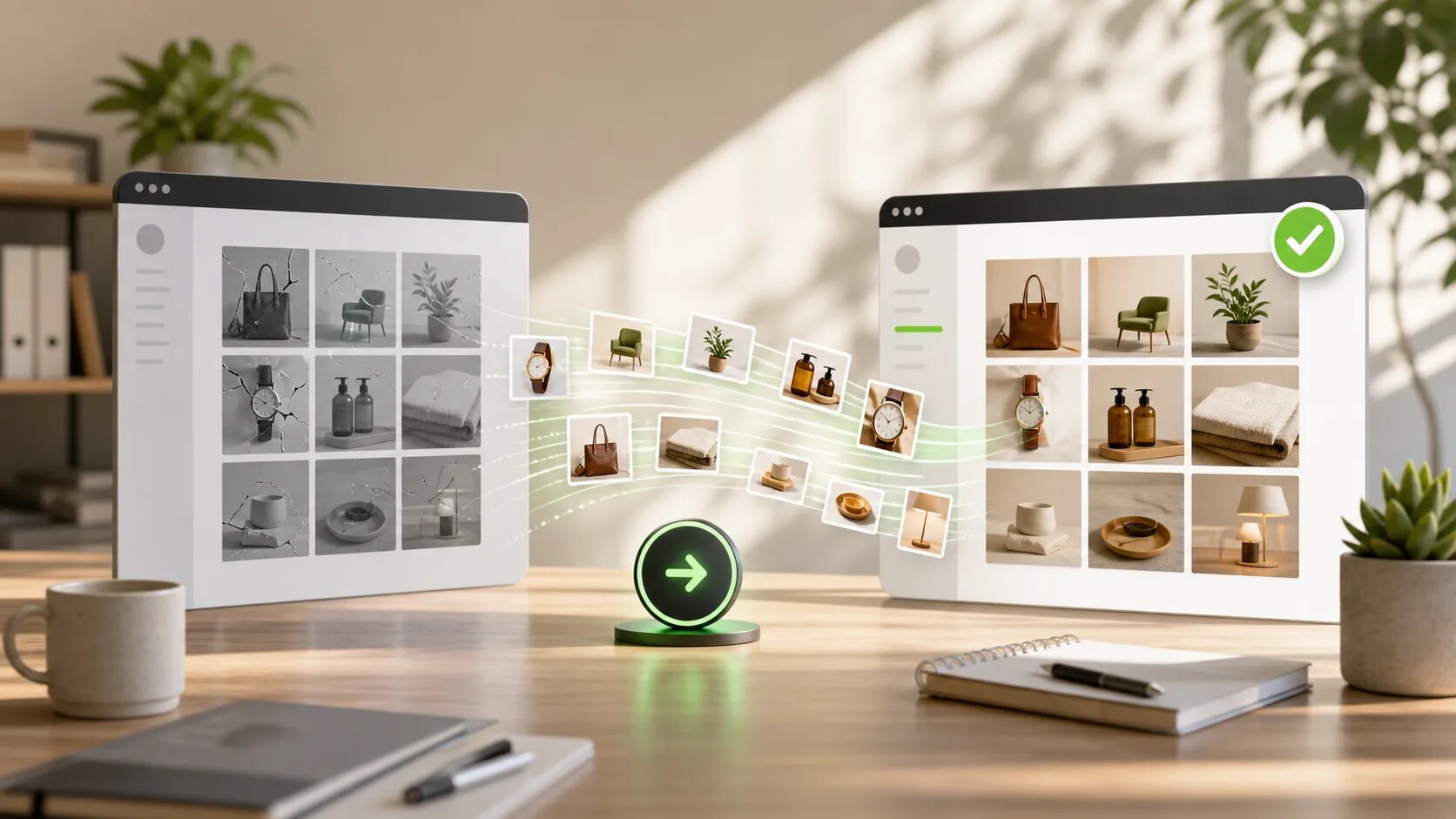
If you’ve decided to move your photo galleries off Cozy, this guide walks through the whole process. It takes about ten minutes on a typical store with a handful of galleries, and most of that time is the app doing work in the background while you wait.
We’ll cover both scenarios: the easy case where Cozy is still partially accessible, and the harder case where Cozy is completely offline and you need to recover images from your live storefront.
Before you start
You need:
- Your Shopify admin login
- About ten minutes of uninterrupted time (so you don’t half-finish a migration and forget)
- Optional but recommended: a development store or theme copy to test on first
You do not need to:
- Uninstall Cozy yet (we’ll do this at the end, after confirming everything moved successfully)
- Manually download any images first (the migration tool handles this)
- Edit any theme code by hand (the migration tool handles this too)
Step 1: Back up your theme
This is the one step we won’t do for you, because if anything goes wrong, you want your own backup.
In your Shopify admin:
- Go to Online Store → Themes
- Find your published theme
- Click the three dots menu → Duplicate
- The duplicate is now a safe rollback point
That’s it. If anything in the next steps goes sideways, you can publish the duplicate to revert. Move on.
Step 2: Install A1 Image Gallery
Head to the A1 Image Gallery listing and click Install. Approve the permissions screen — A1 needs access to your Files (to upload your migrated images), your themes (to swap the gallery embeds), and your product catalog (so we can preserve product links inside galleries).
We don’t ask for customer data, order data, or any analytics scopes. If you ever want to verify what we accessed, your Shopify admin shows a full audit trail under Settings → Apps and sales channels → Develop apps.
After install, you’ll land on the A1 Image Gallery dashboard.
Step 3: Run the Cozy migration scan
From the dashboard, click Migrate from Cozy in the left sidebar.
A1 will:
- Detect whether Cozy is currently installed in your admin
- Scan your theme files for Cozy gallery embeds
- Attempt to reach Cozy’s admin API to pull your gallery metadata
- Show you a list of every gallery it found
The scan takes 30-60 seconds on most stores. If you have a lot of pages or a complex theme, it might take up to two minutes.
You’ll then see a screen listing each gallery A1 detected, showing:
- The gallery name (from Cozy, if accessible) or its location (the URL where it’s embedded, if not)
- An image count
- A status: ready to migrate, needs manual review, or images not recoverable
If everything shows “ready to migrate,” skip to Step 5.
If some galleries show “needs manual review” or “images not recoverable,” read Step 4 first.
Step 4: Handle the broken cases
This is the section that matters if Cozy’s servers are currently offline.
“Needs manual review” means A1 found a gallery embedded in your theme but couldn’t read its full configuration from Cozy. We can still recover the images and create a new A1 gallery, but you’ll need to:
- Confirm or rename the gallery (since we couldn’t read the original name)
- Re-add any product links (since we couldn’t read which images linked to which products)
- Captions, if you had them, may not transfer
“Images not recoverable” means A1 couldn’t reach Cozy’s servers to download the originals, and the rendered storefront didn’t have enough information to recover them either. This happens when:
- Cozy’s CDN is returning errors instead of images
- Your live pages have already been edited to remove the broken galleries
- The galleries existed on pages that aren’t currently published
For unrecoverable galleries, A1 will offer to either skip them entirely or create an empty placeholder gallery in their location, so you can manually re-upload the original images if you still have them somewhere (your local computer, a backup, original supplier files).
A note on storefront recovery. When Cozy’s API is unreachable, A1’s migration tool falls back to scraping images directly from your rendered storefront pages. This works because Shopify caches the HTML of your published pages, including image URLs. As long as the pages haven’t been edited since Cozy broke, we can usually pull thumbnail and medium-resolution copies of your images this way. You won’t get the originals back at full resolution, but you’ll get usable images to work with while you sort out a longer-term plan.
Step 5: Run the migration
Click Start migration on the gallery list page.
A1 now does the actual work:
- Downloads each gallery’s images from Cozy (or from your storefront, if Cozy is offline)
- Re-uploads each image to your Shopify Files (this is the durable copy — once it’s there, it’s yours)
- Creates a new A1 gallery with the same images, in the same order, with captions and alt text where recoverable
- Edits your theme to replace each Cozy embed with the equivalent A1 embed
A progress bar shows how far through it is. On a store with 5-10 galleries, this typically takes 2-3 minutes. On a store with 50+ galleries (uncommon but possible for photography portfolio sites), it can take 10-15 minutes.
You can leave the page during migration — we’ll email you when it’s done. Or you can stay and watch the per-gallery progress.
Step 6: Verify the result
Once migration completes, A1 shows a summary screen with three sections:
Migrated successfully — galleries where everything came across cleanly. Click through any of these to spot-check that the images and order look right.
Migrated with warnings — galleries that came across but lost something (a caption, a product link, an alt text). Click through and add back the missing pieces, or accept them as-is. None of the warnings should break the gallery’s appearance on your storefront.
Failed to migrate — galleries where we couldn’t get the images at all. These need manual attention. The summary tells you exactly which page each one was on and what we tried.
For each migrated gallery, A1 also gives you a “Preview on storefront” link that opens the live page in a new tab so you can see the result immediately.
Click through at least three different page types (a product page, a custom page, your home page if you had galleries there) to confirm everything renders correctly on the live site.
Step 7: Test on mobile
Don’t skip this step. The single most common gallery problem isn’t desktop layout — it’s mobile gestures, image sizing, and lightbox behaviour on phones.
Open your store on your actual phone (not just the Chrome devtools mobile emulator, which lies about gesture behaviour). Visit at least one page with a migrated gallery and:
- Tap an image to open the lightbox — does it open?
- Swipe left and right between images — does it transition smoothly?
- Pinch to zoom on an image — does it respond?
- Swipe down to close — does it dismiss?
- Tap a product-linked image — does it go to the product page?
If anything feels off, the most common cause is theme CSS conflicting with A1’s lightbox. The dashboard has a “Theme compatibility check” button that detects this and offers a one-click fix for common themes (Dawn, Sense, Refresh, Studio, Crave, Showtime, Pinnacle).
Step 8: Uninstall Cozy
Now you can finally remove Cozy.
In your Shopify admin:
- Go to Settings → Apps and sales channels
- Find Cozy Image Gallery
- Click Uninstall
Shopify will warn you that you’re removing an app. Confirm.
The migration tool already replaced every Cozy embed in your theme, so uninstalling Cozy shouldn’t change anything visible on your storefront. If you see broken galleries reappear after uninstalling, the most likely cause is that you have a gallery embed in a place we didn’t scan (a draft theme, a page that’s not currently linked, a blog post that uses a custom template). Email us at [email protected] and we’ll help you find it.
Step 9: Tell us if anything went wrong
Migration tools are never perfect, especially when the source app is partially or fully broken. If you found yourself doing manual work that the migration should have handled, we want to know. Every report makes the tool work better for the next merchant in the same situation.
Email [email protected] with:
- What happened (or didn’t happen)
- Which gallery or page it affected
- A screenshot if relevant
A real person reads every message. We usually reply within a day.
What to expect after the migration
Your storefront should look the same to your customers. They won’t notice the change. Behind the scenes, three things are different:
Your images now live in your Shopify Files, not on Cozy’s CDN. You can see them all in your Shopify admin under Settings → Files. These are yours, regardless of what happens to A1 Image Gallery, Cozy, or any other app in the future.
Your gallery code is part of your theme, not loaded from an external server. If you go to Online Store → Themes → Edit code and look at your theme files, you’ll find A1’s gallery sections as proper theme blocks. They render from your theme assets, not from our servers.
A1 Image Gallery’s admin can be uninstalled without breaking anything. If you ever decide to leave A1 Image Gallery, you can uninstall the app and the galleries will continue rendering on your storefront — because the code and images are in your theme and your Files, not in our system. You can export the gallery configurations to JSON from the dashboard if you want a portable record.
This is the architectural difference that makes A1 different from Cozy and from most other gallery apps. You’re not locked in. Your store doesn’t depend on us being healthy. That was the whole point of building A1 the way we built it.
Questions about the migration? Email [email protected]. Stuck mid-migration? Same email — we’ll help in real time.
A1 Image Gallery is built by A1 Local, an independent Shopify development studio based in Perth, Australia.